Its fix-it-Friday at I heart faces.
The original picture is below.

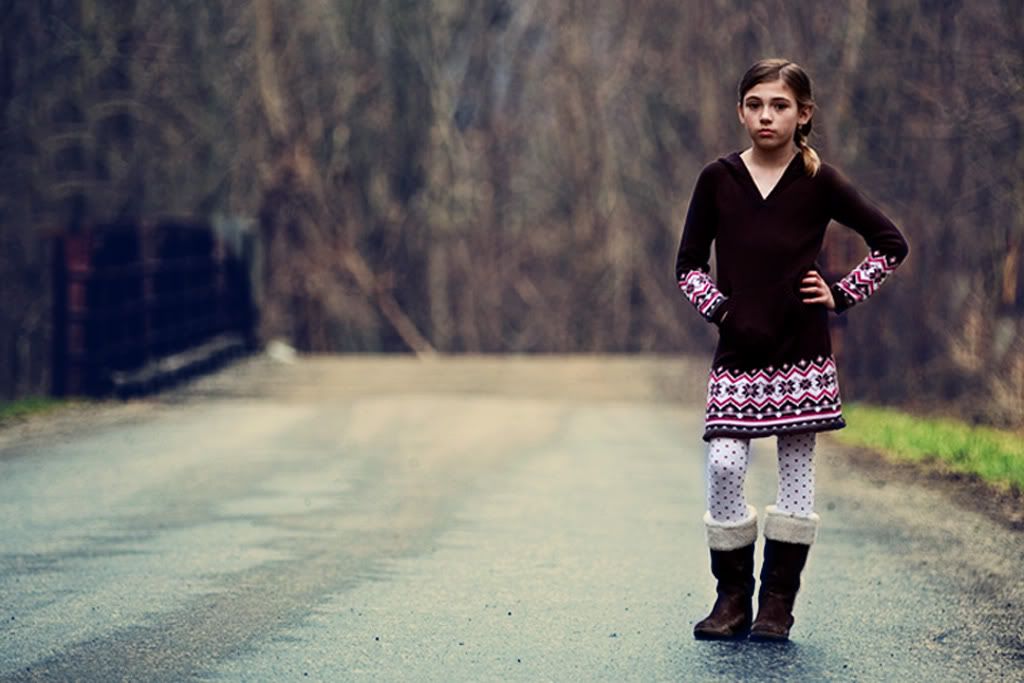







 My first edits were to lighten the image, boost the colors and sharpness, then make the eyes pop! I smoothed out the skin as well since the lightening process brought out the white fuzzies.
 On this final draft I just enhanced the above version by cropping in close to her face and then running "Lovely and Ethereal" from PW. (one of my favorites!)
 On this one I took the cropping even closer in and made the picture into a vertical layout. Then I ran "70's" action from PW (love her!) What would fix it friday be for me without a 70's action picture?! :)


The Original Image:

My first edit was to crop it and boost the colors, lighting and sharpness:
 I then did a high contrast black and white:
 I wanted to try a change the background a bit. I layered a texture over the image, lowered the opacity and then used a mask to remove the texture from the Ponytail Princess:
 On this edit I extended the canvas on both sides of the little girl. Then I cloned the background in to create a continued background. I then boosted the colors, and ran PW's "Lovely and Ethereal":
 This week we are fixing the following picture....the first thing I noticed was the bright background and underexposed subject. I thought of using PW's action to "dim the lights" and it worked beautifully. My edits are below...I tried not to do a bunch this week, but as I have said before, once I get started, I just don't want to stop! :)


Same as above, but converted to black and white.
 Same as above, but layered the black and white over the color, then used a layer mask to remove the b&w from the tulips.

The Original Shot

This is my edited version. I lightened it just a bit, then added 3 different layers. I used one as a soft light layer, and the other two as overlays at about 50%. Then I used the healing tool to remove the texture from the little boy without removing the color tones of the layer.
 Ran the "70's" action on this one, then boosted the sharpness, colors and contrasts.
 This one is just a black and white version of the picture above.
 Now we are off to the Oregon Zoo in Portland with some friends!!
 Rotated 45 degrees, and cloned in the blanket to fill in the voids.
  First I lightened the image. Then ran an action to make the eyes sparkle. I also added a texture called "sandstone" to blur out my changes to the blanket. Then I used the history brush on the face. Then I used "rounded corners" action, just cuz I like it. :)
 On this picture I did the same as above, except without the sandstone filter.
 This one has the "Seventies" action that I love so well. I change the layer opacity a bit to tone it down some.
 On this shot, I ran the sparkly eyes action, then I lightened the picture by about 2 more steps. Then I converted it to black and white. This one is my favorite of the edits.


Original Shot (Its already a great one which makes it hard to play with!)


This last one is super fun...I added a grungy texture over the edited image. I pasted my grungy pattern onto the image, and then chose "overlay" for that layer. Then I partially removed it with the history brush across the face. I think this one might be my favorite this week!


Lightened, warmed and converted to black and white, then rotated a bit and cloned in the background to create a larger space around the face.

On this one I lightened it, and warmed it up. I then cropped it to a horizontal angle and cloned in the background to create a different look. I would take any suggestions on how to fix the cloned part...I feel like it has some obvious "rows" or lines.

 My favorite time of the week over at I ♥ Faces! Its Fix It Friday!! This sweet little one hardly needed anything. (in my opinion) But I did boost the picture and tried to make the baby's eyes stand out a bit more. I did tone down the red in a birth mark (I think it is anyway) on the arm...but I didn't want to remove it completely since that is a part of baby! I also tried to add some pink highlights to the blanket because I am under the impression that this is a little girl and wanted that to be more evident.
And of course, I have more than one....as always!

Cropped Black and White

Boost with "eye pop" action

Same as above with some fun artsy accents.

My trusty "70's" Action...that I love on so many different pictures!
(free from The Pioneer Woman)

© Snapshot - A Photography Blog. Design by Cinnamon Girl Studio

